
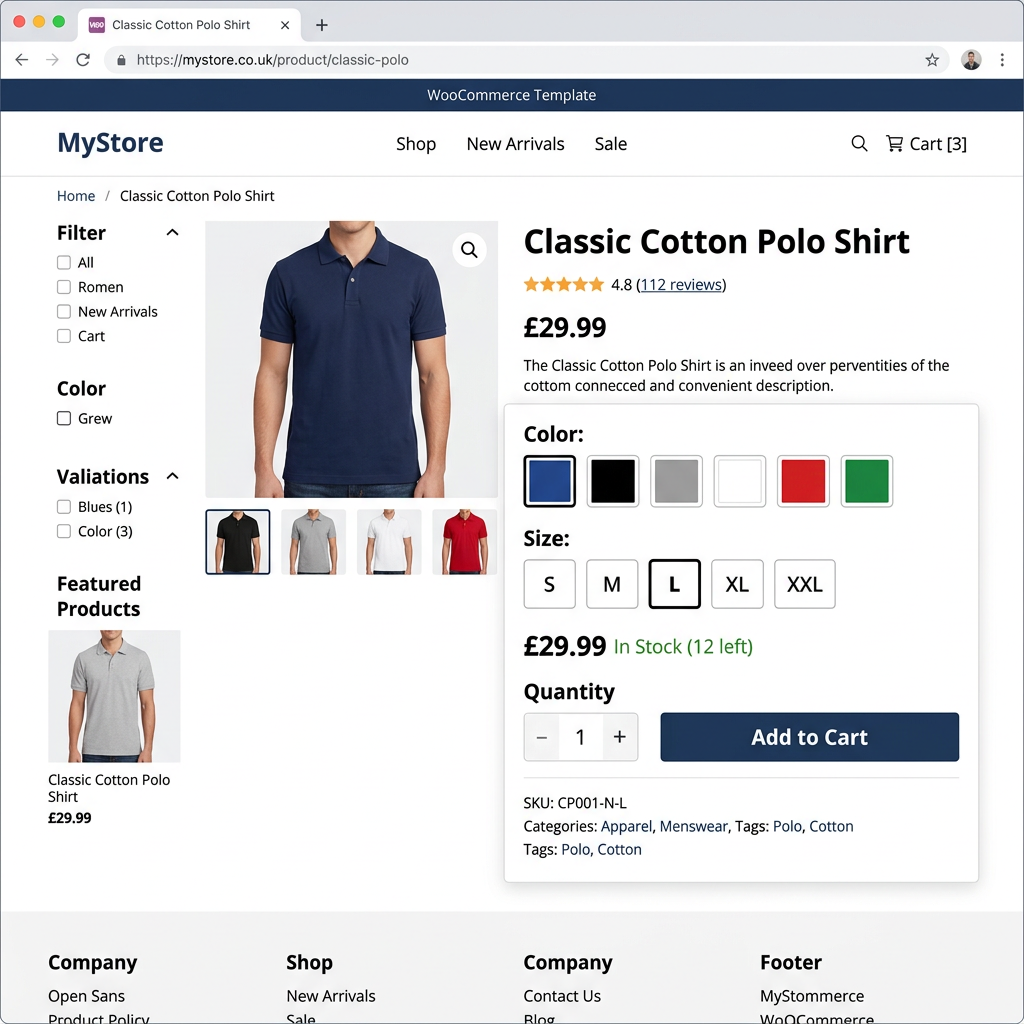
If you sell products that come in different sizes, colors, materials, or any other options, WooCommerce product variations are how you handle that cleanly. Instead of creating a separate product listing for every combination — a red shirt in small, a red shirt in medium, a blue shirt in small, and so on — variations let you manage all of that under a single product with its own pricing, stock levels, and images per option.
The Difference Between Attributes and Variations
Attributes are the characteristics of a product — things like color, size, or material. Variations are the specific combinations of those attributes that you actually sell. A product might have a “Color” attribute with values Red, Blue, and Green, and a “Size” attribute with values Small, Medium, and Large. Each purchasable combination is a variation. You don’t have to offer every possible combination — if you only stock Blue in Large, that’s the only variation you need to create.
Setting Up a Variable Product in WooCommerce
Start by changing the product type from “Simple product” to “Variable product” in the Product Data section. This unlocks the Attributes and Variations tabs.
Step 1: Add Your Attributes
Go to the Attributes tab and add the characteristics that apply to this product. You can use global attributes — ones you’ve defined site-wide — or create custom attributes specific to this product. Enter all the values for each attribute and check “Used for variations” before saving.
Step 2: Generate Your Variations
Switch to the Variations tab. You can generate all variations automatically or add them manually. For most products, auto-generating and then deleting combinations you don’t carry is faster than building each one by hand. Be aware that large numbers of variations affect page load time — if you have a very large matrix of options, consider whether some could be handled as separate products instead.
Step 3: Configure Each Variation
Each variation can have its own price, sale price, SKU, stock quantity, weight, dimensions, and image. A larger size might cost more — set a different price. A color you’re running low on — set its stock independently. At minimum, set a price for every variation. WooCommerce won’t display a variation as purchasable without one.
Common Use Cases
- Apparel: Size and color combinations with per-variation stock and images
- Food and beverage: Pack size or weight options with different pricing
- Digital products: Different license tiers or file format options
- Personalized products: Variations based on material, finish, or personalization options
What to Watch Out For
Performance: Products with large numbers of variations can slow your product pages. WooCommerce loads variation data via JavaScript, and loading 100+ variations means loading significant data. Missing prices: Any variation without a price will show as unavailable — review every variation after setup. Stock management: You can manage stock at the product level or variation level, but not both simultaneously — choose whichever matches how you actually track inventory.
When Variations Aren’t the Right Tool
Variations work well for options that don’t fundamentally change what the product is. When options are complex enough that each deserves its own product page, its own SEO treatment, or a completely different set of images and descriptions, separate products are often cleaner. For highly configurable products, WooCommerce product add-ons or a custom configurator may be a better fit.
At Interactive Design Group, we think through these decisions as part of every WooCommerce store we build. If you’re building a new store or dealing with a catalog that’s become hard to manage, get in touch.