
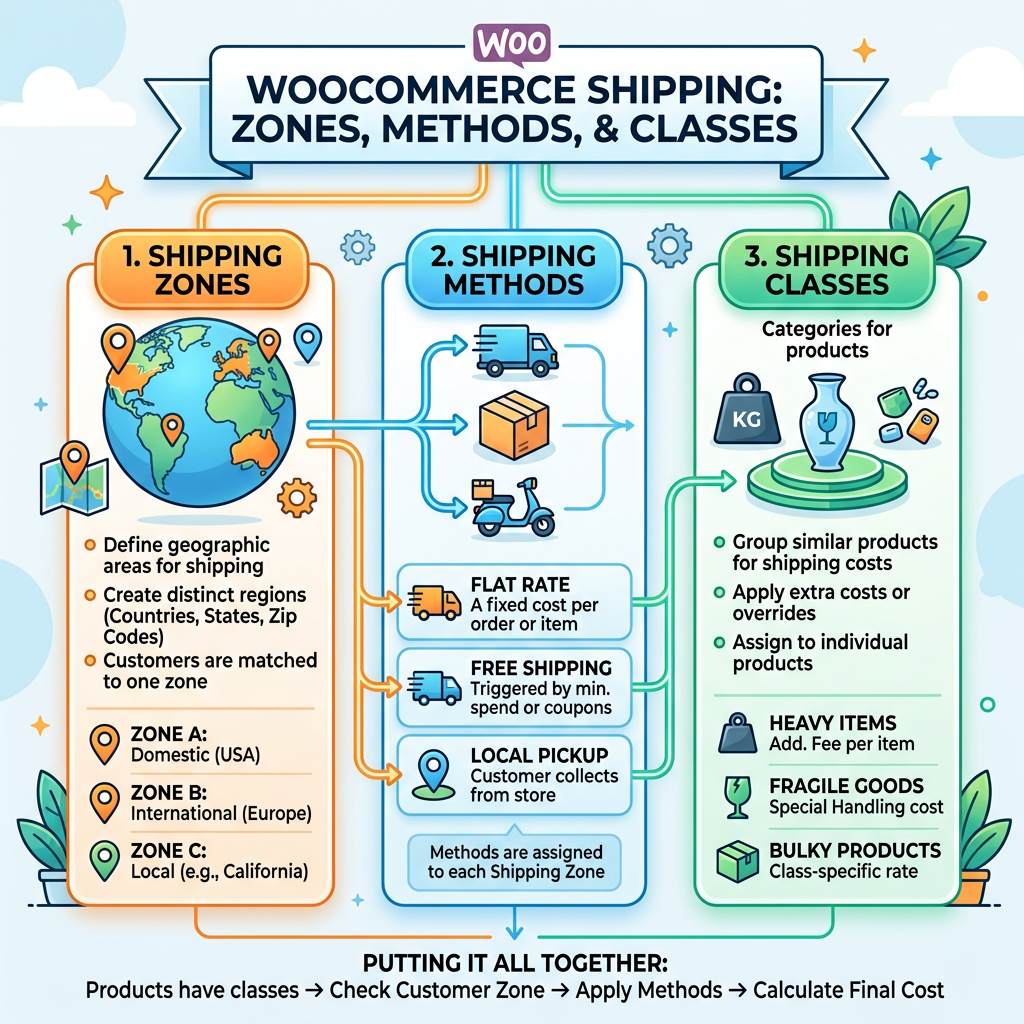
Shipping is one of those areas of WooCommerce that looks simple until you’re actually configuring it. The core concepts — zones, methods, classes — are straightforward. But the combination of options, the edge cases, and the places where defaults create problems for real-world operations trip up a lot of stores. Here’s how to think about WooCommerce shipping setup correctly, and the mistakes worth avoiding from the start.
How WooCommerce Shipping Is Structured
WooCommerce shipping is built around three core concepts that work together:
- Shipping zones define geographic areas — a country, a set of states, a specific zip code range. Each zone can have its own set of shipping methods with different rates.
- Shipping methods are the options available within a zone — flat rate, free shipping, local pickup, or rates calculated in real time by a carrier like UPS or USPS.
- Shipping classes let you group products with similar shipping characteristics — oversized items, fragile goods, digital downloads — and apply different rates to each class within a method.
When a customer enters their address at checkout, WooCommerce matches it to a shipping zone and displays the methods available for that zone. If the cart contains products with different shipping classes, the rates for each class get calculated and combined according to rules you define.
Setting Up Shipping Zones Correctly
WooCommerce matches a customer’s address to zones in the order they appear in your shipping settings — top to bottom. The first zone that matches applies. This ordering matters more than most store owners realize.
A common mistake: setting up a “United States” zone and a “California” zone, but putting United States first. Every California customer gets matched to the US zone before WooCommerce ever checks the California zone. The fix is simple — more specific zones go above less specific ones — but it’s not obvious until you’ve seen checkout display the wrong rates for a specific region.
WooCommerce includes a “Rest of the World” zone that catches any customer whose address doesn’t match a defined zone. If you don’t ship internationally, configure this zone to display a message or no shipping methods — otherwise customers in unsupported regions will see blank checkout options with no explanation.
Flat Rate vs. Real-Time Carrier Rates
Flat Rate
Simple to configure and predictable for customers. The challenge is calibration. Set it too high and you lose price-sensitive customers. Set it too low and you subsidize shipping on every order, which erodes margins. Many stores use a hybrid: free shipping above a threshold and a flat rate below it. The threshold needs to be set at a level where the average order value genuinely covers the shipping cost.
Real-Time Carrier Rates
Live rates from carriers like UPS, USPS, and FedEx are calculated at checkout based on actual package dimensions, weight, origin, and destination. Customers see accurate shipping costs, which reduces surprise-cost abandonment. The trade-off is complexity — real-time rates require a plugin, carrier API credentials, and accurate product weight and dimension data for every item in your catalog. Stores with inconsistent product data will display inaccurate carrier rates that are often worse than a well-set flat rate.
Shipping Classes: When and How to Use Them
Shipping classes are useful any time your product catalog has items with meaningfully different shipping costs. A store that sells both small jewelry and large framed artwork has a real problem if it charges the same rate for both. Within a flat rate method, you can set different rates per shipping class and control how they combine when a cart contains items from multiple classes. Testing with realistic mixed-product carts before launch catches the combinations that produce unexpected totals.
Common Mistakes That Cost Stores Money
- Not accounting for dimensional weight. Carriers charge based on whichever is greater — actual weight or dimensional weight. A large but lightweight box can cost significantly more to ship than its actual weight suggests.
- Forgetting to test the checkout experience. Shipping configuration errors are invisible in the WordPress admin — they only show up at checkout. Walk through a complete purchase for a variety of cart combinations before your store goes live.
- Setting free shipping thresholds without running the math. A threshold set based on gut feel is often either too low (subsidizing shipping that eats margin) or too high (not actually influencing behavior).
- No handling fee built in. Packing materials, labor, and fulfillment overhead are real costs that carrier rates don’t include. A flat handling fee captures costs that otherwise come silently out of product margin.
International Shipping Considerations
If you ship internationally, customs documentation, duties, and taxes add complexity that domestic shipping doesn’t have. Some stores pass duties to customers (DDU) — customers pay customs fees when the package arrives. Others absorb duties (DDP) and build the cost into their international rates. Neither approach is universally right; it depends on your margins, product categories, and target markets.
Getting Shipping Right From the Start
Shipping configuration is one of the areas where getting it right at build time is significantly easier than fixing it on a live store. Errors affect real orders, create customer service issues, and can silently erode margins for months before anyone identifies the cause.
At Interactive Design Group, shipping setup is part of every WooCommerce store we build — configured correctly for your product catalog, your carrier relationships, and your fulfillment operation. If your current shipping setup isn’t working the way it should, get in touch.